EASY JS8 Main window, upright
Holding the device upright always shows this layout: one long page that scrolls up and down, from the header at the top to the Inbox at the bottom.
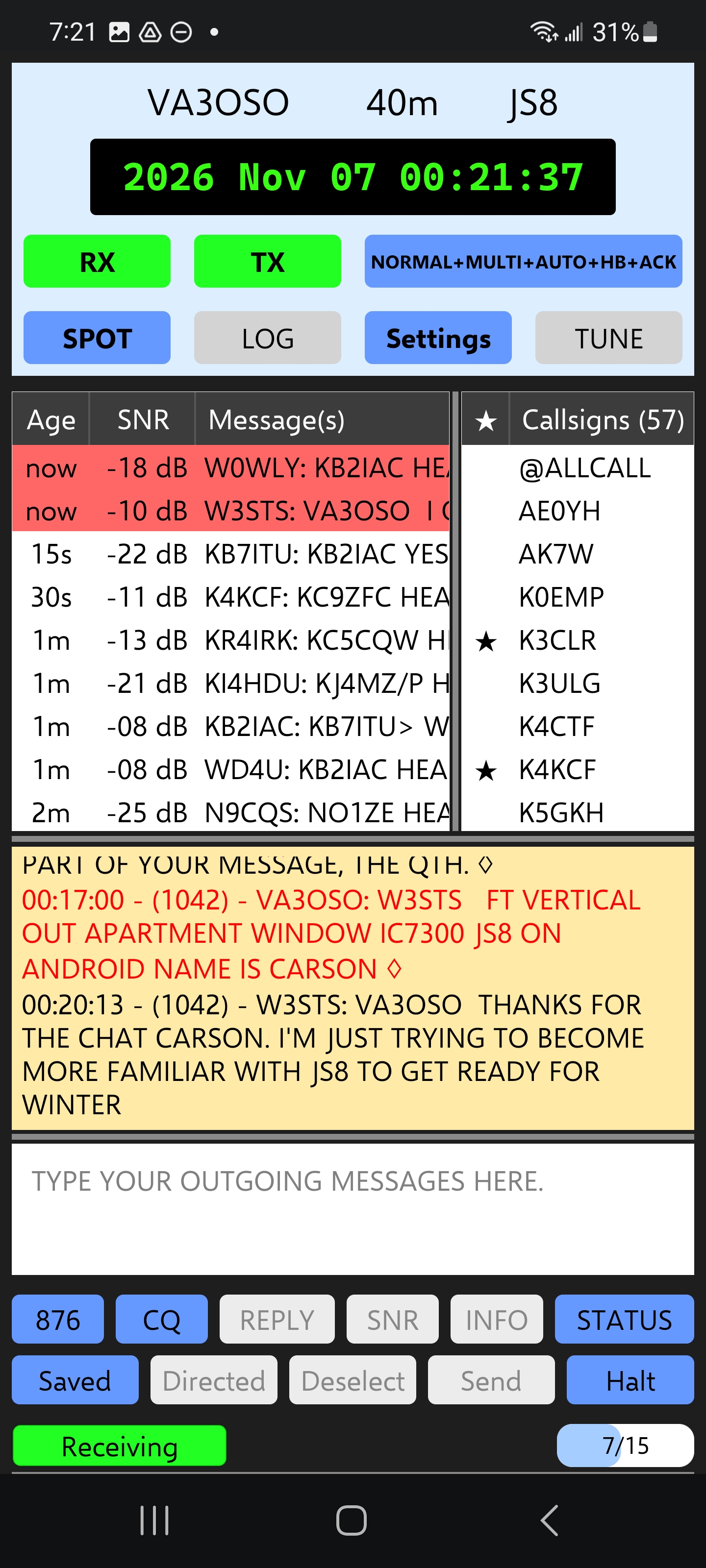
Your callsign
Band and mode
Clock
Header buttons
Band Activity
Call Activity
Message Window
Typing Box
Buttons
Status Bar
Your callsign
- Your callsign, from My Callsign on the Station window's General page.
- Tap: opens the Station window on the General page.
Band and mode
- The band of the dial frequency, for example 40m, and the mode, JS8.
Header buttons
- RX: turns receiving on and off. Does nothing while transmitting.
- TX: turns the transmitter on and off. Turning it off stops the transmission and drops the queued messages. While it is off, new messages wait.
- NORMAL+MULTI+AUTO+HB+ACK: shows the speed and what is turned on. Tap: the speeds, then Enable Simultaneous Decoding of All Speeds (MULTI), Enable Autoreply (AUTO), Enable Heartbeat Networking (HB) and Enable Heartbeat Acknowledgments (ACK). Each takes effect at once. The speed can't change while a message is waiting or being sent.
- SPOT: turns spotting to the reporting networks on and off.
- LOG: opens Log QSO for the selected callsign.
- Settings: opens the Settings window.
- TUNE: sends a steady tone at your offset until tapped again.
Band Activity
- The left list: every signal heard, one row per offset. It starts with Age and Message(s); Settings > View > Show Offset in Band Activity and Show SNR in Band Activity add those columns.
- Tap a row: selects the newest callsign at that offset.
- Double-tap a row: moves your offset there and copies its text into the Message Window.
- Press and hold a row: Jump to … Hz, Center filter at … Hz (while the filter is on), Jump to … speed, Jump to … ms time drift, Log..., Saved Messages..., Directed to..., Relay via..., Deselect, Remove Activity, Clear, Clear All Lists.
- Tap a column header: sorts by that column.
- Press and hold a column header: a checklist to show or hide columns.
Call Activity
- The right list: every callsign heard, with the number in the header, for example Callsigns (57).
- The first column: ⚑ a message for you, ★ an acknowledgement, ☎ a CQ, ⚟ heard through a relay, ✕ blocked.
- Tap a callsign: selects it. Tap it again: deselects it.
- Double-tap: selects it and puts it in the Typing Box.
- Press and hold: HEARING: and HEARD BY: at the top, the Jump items, Log..., Show Message Inbox..., Store Message..., Saved Messages..., Directed to..., Relay via..., Deselect, Add New Station or Group..., Remove This Station, Block This Station, Clear Entire List, Clear All Lists.
- Column headers: the same as Band Activity.
Message Window
- The yellow box: incoming and outgoing messages for you and the selected callsign.
- Drag inside it: scrolls the box, not the page.
- Press and hold: Copy, Clear, Clear All Lists, Save As... (saves the text to a .txt file).
Typing Box
- The white box: type your outgoing message here. It stays in the box until its last part has been sent, with the sent text crossed out.
- Press and hold: spelling suggestions for the word pressed, Restore Previous Message, Saved Messages..., Directed to..., Relay via..., Cut, Copy, Paste, Clear, Clear All Lists.
Buttons
- HB: tap sends one heartbeat; with a repeat time set, it starts and stops the heartbeat timer and shows the seconds to the next one. Press and hold: Start / Stop Heartbeat Timer, On demand / do not repeat, Repeat every 10, 15, 30 or 60 minutes, Repeat every N minutes (Custom Interval), Send Heartbeat Now.
- CQ: tap sends your CQ message; with a repeat time set, it starts and stops the CQ timer. Press and hold: the same menu with 1, 5, 10 or 15 minutes, and Send CQ Now.
- REPLY: sends your reply message to the selected callsign.
- SNR: sends the selected callsign its signal report.
- INFO: sends your station information.
- STATUS: sends your station status.
- Saved: your saved messages, Edit Saved Messages, Save Current Message, APRS EMAIL, APRS TXT, APRS GRID (sends your grid to APRS-IS at once), APRS MSG.
- Directed: the query list for the selected callsign, from SNR?, INFO?, GRID? and HEARING? to MSG, QUERY MSGS, AGN?, QSL, 73 and SK.
- Deselect: clears the selected callsign.
- Send: sends the Typing Box. Needs your callsign and grid set, unless SWL (Listening only) is on.
- Halt: stops the transmission now, empties the Typing Box, drops the queue, turns TUNE off and stops the HB and CQ timers.
Status Bar
- Receiving or Transmitting, the cycle progress bar (for example 7/15), then the speed (JS8 Normal), Freq, Auto Reply and Last Tx, which scroll in from the right.
Waterfall
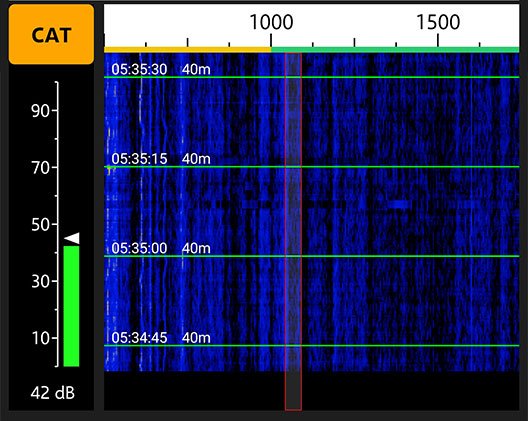
- CAT: the radio connection. Green: connected, or no radio is set up. Orange: connecting. Red: the connection failed. It reads CAT/S while the radio is in split.
- Level meter: the audio level coming in from the radio, with the number in dB under the bar. The bar turns yellow when the level stays under 15 and red when the loudest sound goes over 85. Keep it green. The white triangle marks the highest of the last ten readings.
- The waterfall shows signals as they arrive, newest at the top, with the offset in Hz along the scale. A green line marks the start of each cycle, with its UTC time and the band.
- Tap the waterfall or the scale to move your offset there. The red box shows the width your signal takes at the current speed.
- Press and hold for Set Offset to … Hz, Set Filter Center to … Hz and Set Filter Width to... (25 to 2000 Hz). The two filter items also turn the filter on. Disable Filter is listed while the filter is on.
Waterfall Controls
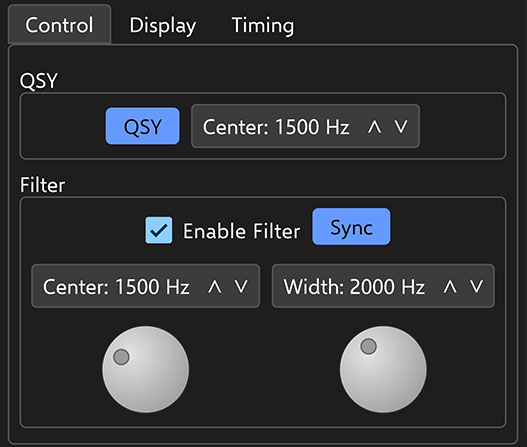
Control tab
- QSY retunes the radio so your signal stays on the same frequency while your offset moves to the Center value.
- With Enable Filter checked, only signals inside the filter are decoded, and the waterfall shades everything outside it. Unchecked, the whole 0 to 5000 Hz is decoded.
- Sync moves the filter center to your offset. Set the filter's Center and Width with ∧ ∨ or the knobs.
- ∧ ∨: a tap steps by 1. Hold to repeat; the steps grow to 10, then 100, the longer you hold.
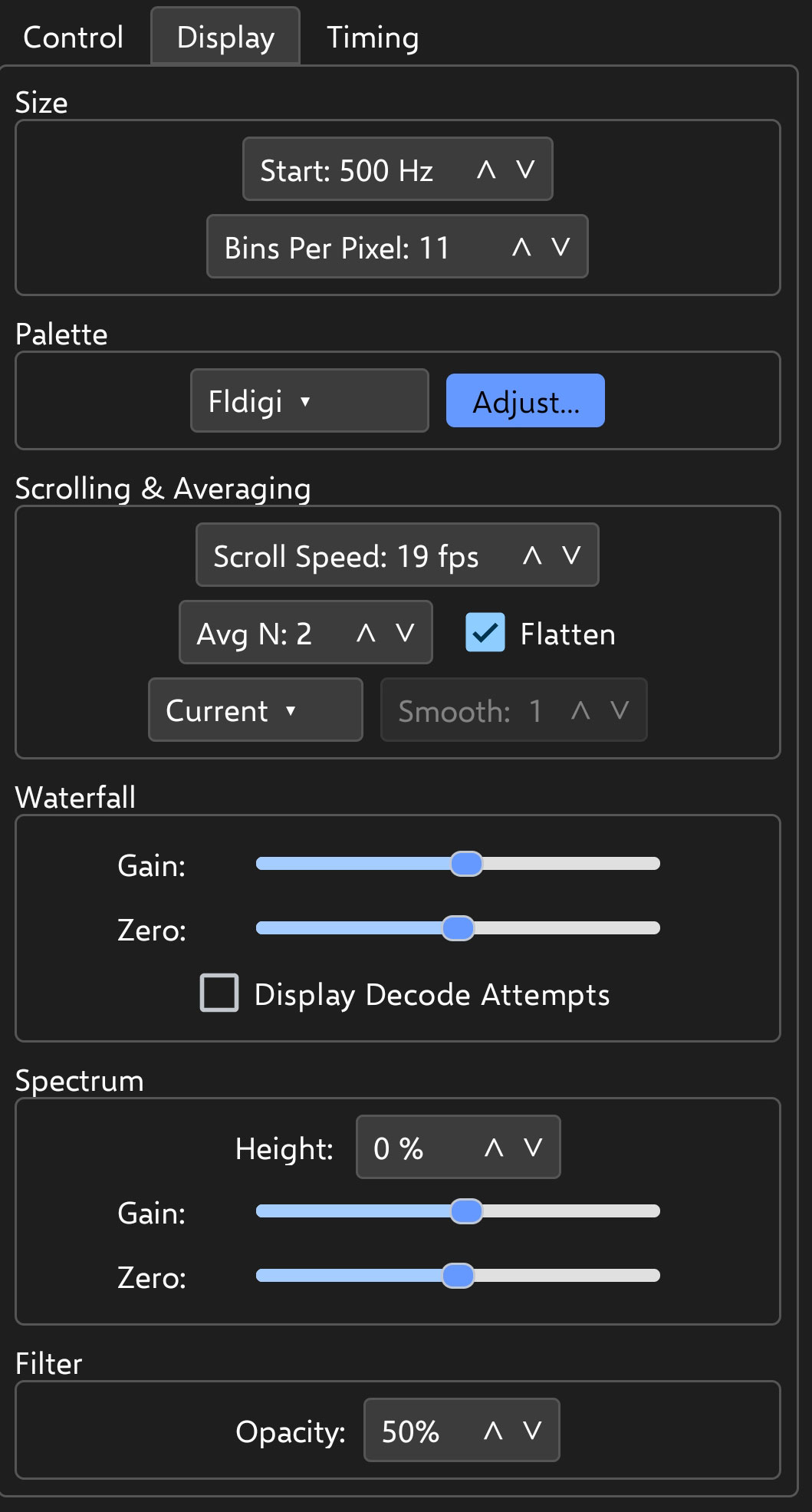
Display tab
- Start: the offset at the left edge of the waterfall.
- Bins Per Pixel: how many Hz each pixel covers. Higher shows a wider range; lower spreads signals apart.
- Palette: the colours. Adjust... builds your own colour list, and imports and exports .pal files.
- Scroll Speed: how fast the waterfall moves.
- Avg N: how many readings are averaged into each line. Higher is smoother but slower.
- Flatten: evens out the background so the edges of the radio's audio range don't look darker.
- Current, Cumulative, Linear Avg: what the spectrum graph shows: the latest reading, this cycle's average, or a smoothed average. Smooth sets how much, for Linear Avg only.
- Waterfall Gain: contrast. Zero: brightness.
- Display Decode Attempts: draws a line on the waterfall wherever the decoder tried to decode a signal.
- Spectrum Height: how much of the waterfall area the spectrum graph takes. 0 % hides it. Gain and Zero work as they do for the waterfall.
- Filter Opacity: how dark the shading outside the filter is.
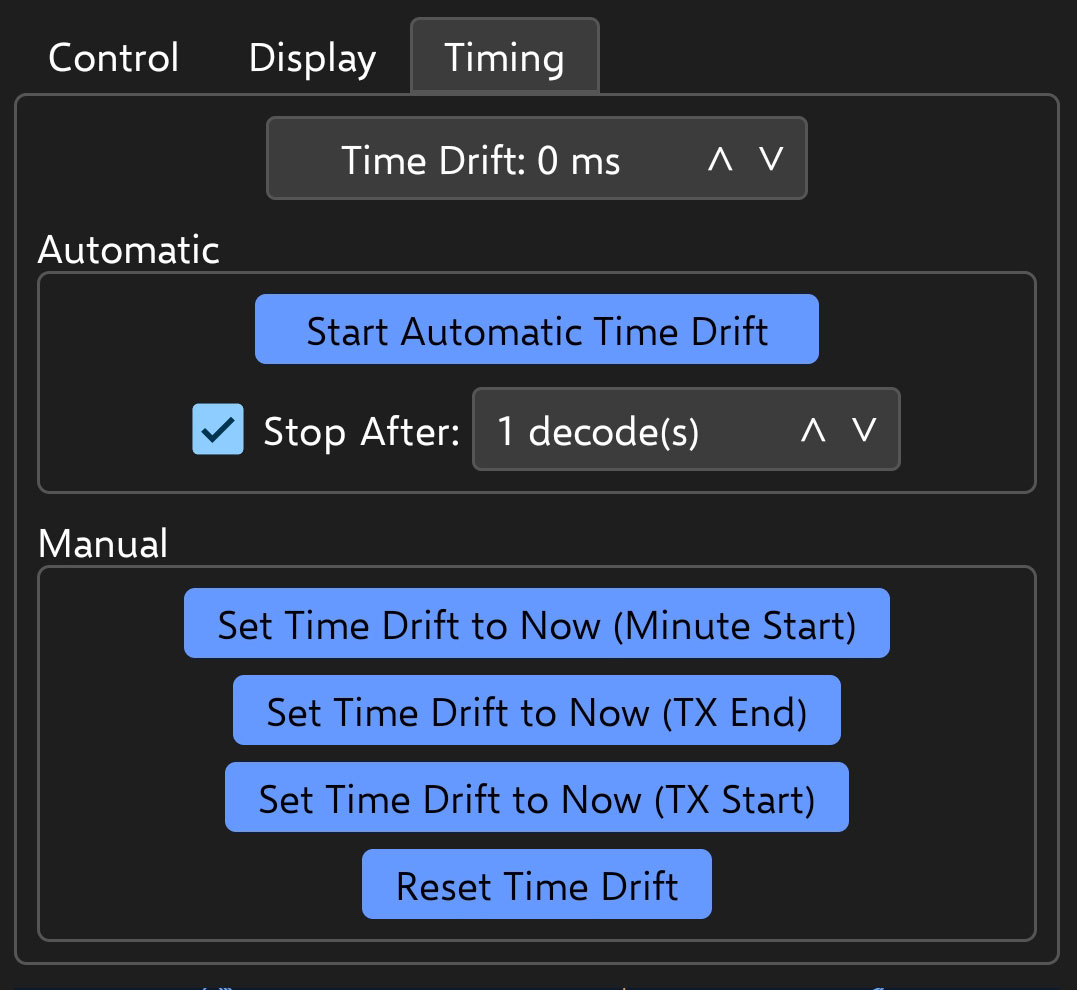
Timing tab
- Time Drift: moves the app's cycle timing earlier or later than the device clock, in 100 ms steps, so it lines up with the stations you hear.
- Start Automatic Time Drift: sets the drift from the signals it decodes. With Stop After checked it stops after that many decodes; unchecked, it keeps adjusting.
- Set Time Drift to Now (Minute Start) makes this moment the start of a minute. (TX Start) makes it the start of a cycle; tap it as a signal starts on the waterfall. (TX End) makes it the end of a cycle.
- Reset Time Drift: back to 0 ms.
Map
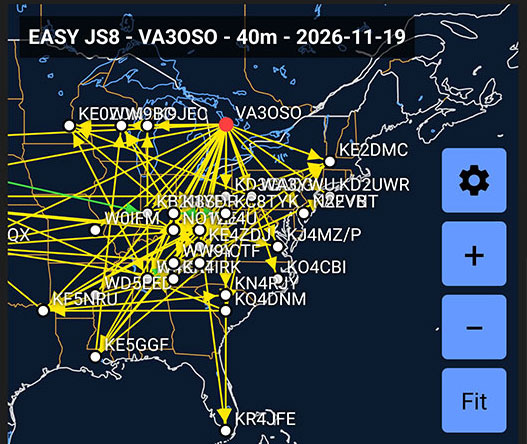
- Your station is the red dot. Every Call Activity station with a known grid is a white dot.
- A line joins two stations when one heard the other. The arrow points at the station that was heard. Green: they heard each other. Yellow: one way only.
- The map moves to take in new stations until you move it yourself. Fit shows every station and goes back to following new ones.
- + and − zoom. You can also pinch, drag, or double-tap to zoom in on that spot.
- The gear button opens Map options: Lines: Arrows, Plain lines or No lines; Remove stations from map after: Same as Call Activity, or 15 minutes up to 2 hours; Show callsigns, Show state and province lines and Show grid squares.
Inbox
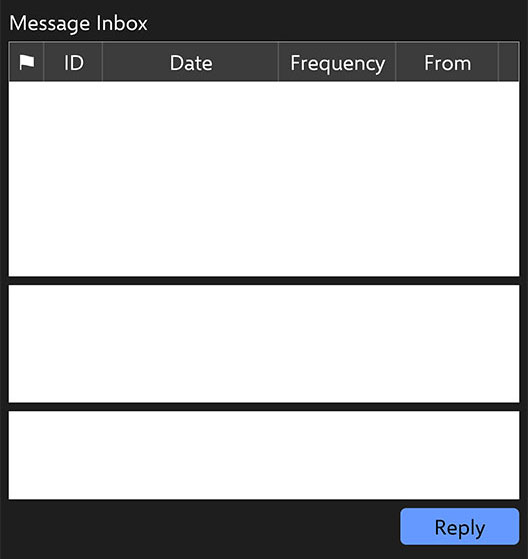
- Messages sent to you, and messages stored here for another station to collect. Unread messages are bold, with ⚑. Dates are UTC.
- Tap a message to show it in the box under the list and mark it read.
- Press and hold a message for Delete, Select More (tap more messages, then delete them together) and Select All.
- Reply: select a message, type your reply in the bottom box, then tap Reply. CALLSIGN MSG and your text go into the Typing Box, ready to send, and the message lands in their inbox. With the bottom box empty, [MESSAGE] goes in for you to replace.