
EASY JS8 Main window, sideways
Holding the device sideways shows one of two layouts: PC or Pages. Choose one in Settings > ⚙ > Station Settings > Layout > Sideways layout:. The Layout page is listed only while the device is sideways.
PC layout
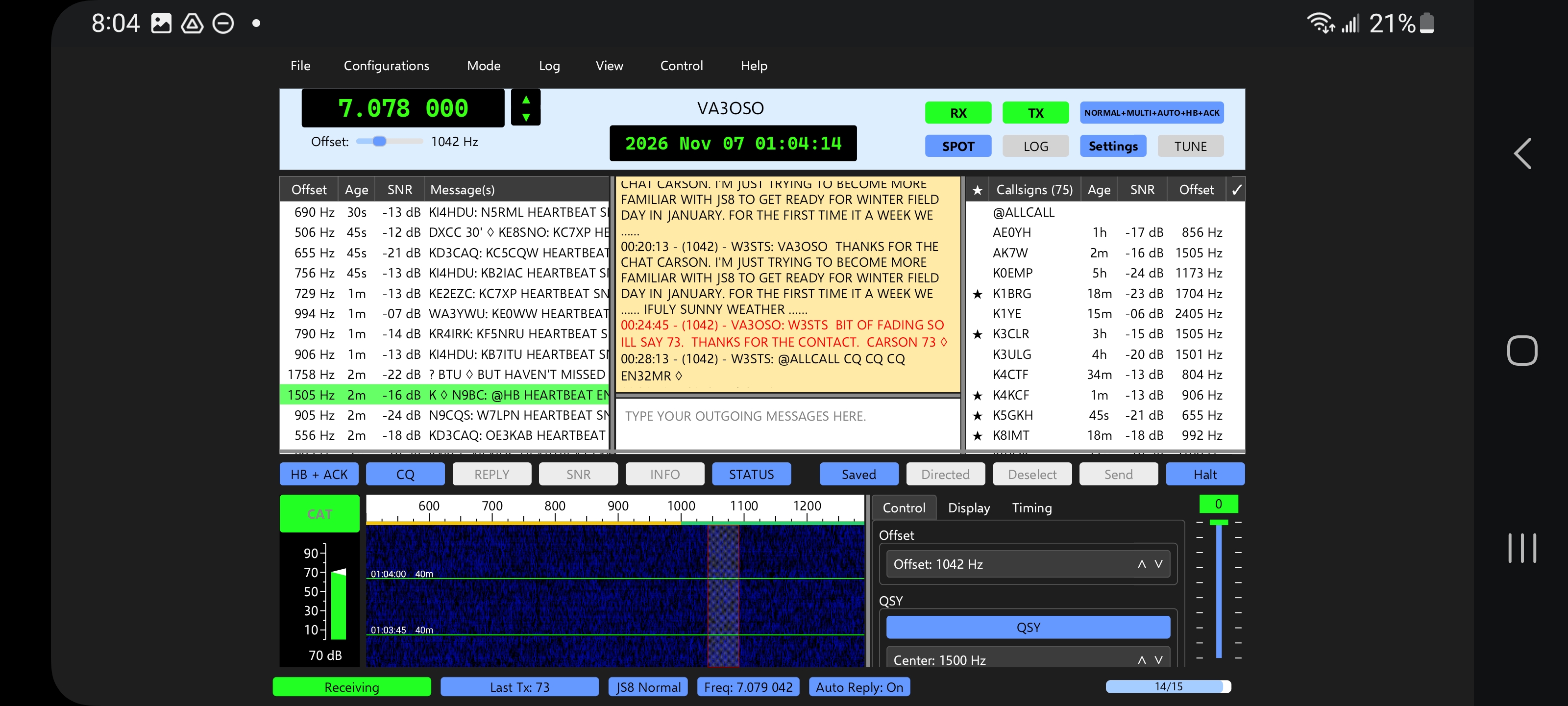
Menu bar
Frequency
Offset
Band Activity
Buttons
CAT and level meter
Waterfall
Status Bar
Your callsign and clock
Header buttons
Call Activity
Message Window
Typing Box
Waterfall Controls
Power slider
Menu bar
- File: Station… opens the Station window. Exit stops the app.
- Configurations: each saved configuration, with Switch To, Clone, Clone Into ..., Rename ..., Reset and Delete.
- Mode: the same menu as the NORMAL+MULTI+AUTO+HB+ACK button.
- Log: Add Log Entry..., Open Log Directory..., Erase ALL.TXT, Erase js8call_log.adi.
- View: Settings…; show or hide Frequency & Clock, Band Activity, Call Activity, Waterfall, Waterfall Controls and Statusbar; Show Band Heartbeats and ACKs; the column and sort lists for both activity lists; Show Time Drift Controls...; Show Fullscreen; Show Message Inbox...; Reset Frame Sizes.
- Control: Enable Receiver (RX), Enable Transmitter (TX), Enable Reporting (SPOT), Enable Tuning Tone (TUNE), Set Frequency..., Set Offset..., Set Focus..., Send Heartbeat..., Send CQ Message..., Clear Activity....
- Help: Copyright notice, Check for Updates, About, JS8Call User Guide.
Frequency
- The dial frequency.
- Tap: Set a Custom Frequency... and your frequency list.
- ▲ and ▼: move the dial up or down 250 Hz.
Offset
- Slide to set your offset; the number beside it is the offset in Hz. It can't move while a message is waiting or being sent.
Your callsign and clock
- The same as upright. Tap your callsign: opens the Station window on the General page.
Header buttons
- RX: turns receiving on and off. Does nothing while transmitting.
- TX: turns the transmitter on and off. Turning it off stops the transmission and drops the queued messages. While it is off, new messages wait.
- NORMAL+MULTI+AUTO+HB+ACK: shows the speed and what is turned on. Tap: the speeds, then Enable Simultaneous Decoding of All Speeds (MULTI), Enable Autoreply (AUTO), Enable Heartbeat Networking (HB) and Enable Heartbeat Acknowledgments (ACK). Each takes effect at once. The speed can't change while a message is waiting or being sent.
- SPOT: turns spotting to the reporting networks on and off.
- LOG: opens Log QSO for the selected callsign.
- Settings: opens the Settings window.
- TUNE: sends a steady tone at your offset until tapped again.
Band Activity
- Shows Offset, Age, SNR and Message(s). Time Delta and Mode Speed can be added from the column list.
- Taps and press-and-hold: the same as upright.
Call Activity
- Shows Callsigns, Age, SNR, Offset, ✓ (worked before), Name and Comment. Time Delta, Mode Speed, Grid Locator, Distance and Azimuth can be added from the column list.
- Taps and press-and-hold: the same as upright.
Message Window and Typing Box
- The same as upright, side by side between the two lists.
Buttons
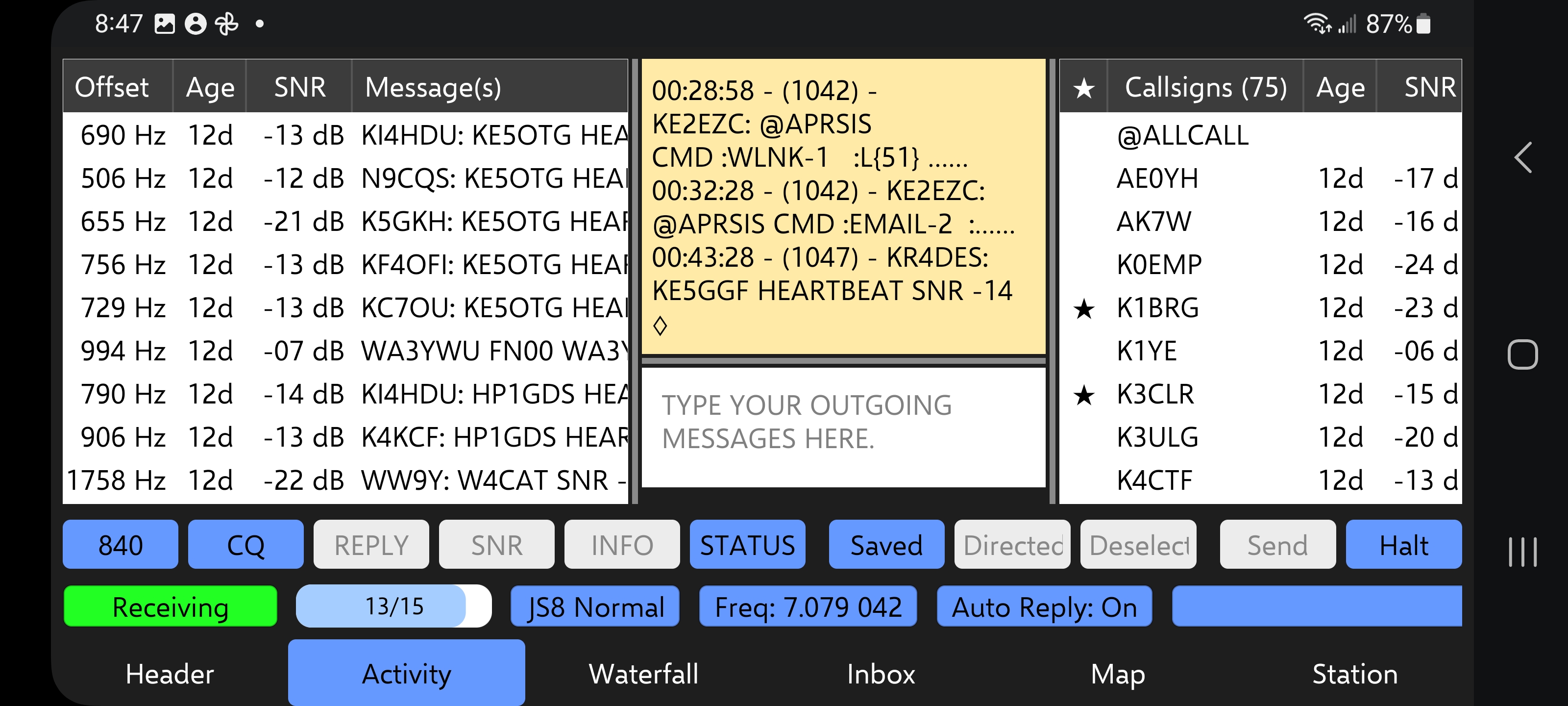
- The same ten buttons as upright, in one row. With heartbeat acknowledgments on, HB reads HB + ACK.
CAT and level meter
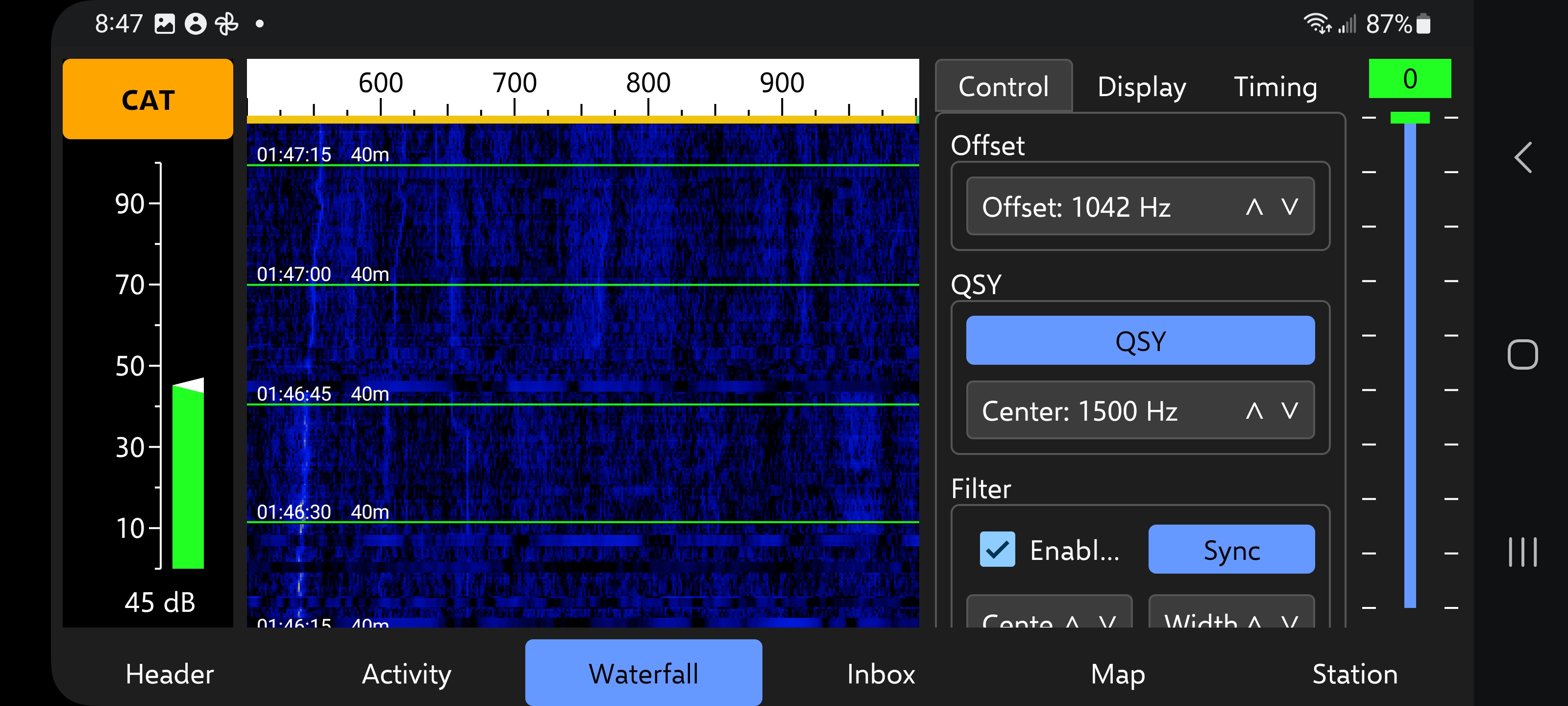
- CAT: reads the radio's frequency again.
- The meter: the input level on a 0 to 90 dB scale, with the level in dB under it.
Waterfall
- The same as upright: tap to set your offset, press and hold for the filter menu.
Waterfall Controls
- The Control, Display and Timing tabs. Sideways, the Control tab starts with the Offset box.
Power slider
- Slide down to lower the transmit audio sent to the radio, by up to 45 dB.
Status Bar
- Receiving or Transmitting, Last Tx, the speed (JS8 Normal), Freq, Auto Reply and the cycle progress bar (for example 14/15).
Dividers
- The lines between the parts move. Drag from one of three spots: the two corners where the upright lines meet the line between the Message Window and the Typing Box, and the gap between STATUS and Saved.
- The sizes are kept. View > Reset Frame Sizes puts them back.
Zoom
- Pinch to zoom, up to 4 times.
- Two fingers move the window; one finger moves it on an empty area.
- Double-tap an empty area: switches between fitted and 2 times.
- The text is redrawn at each zoom, so it stays sharp.
Pages layout
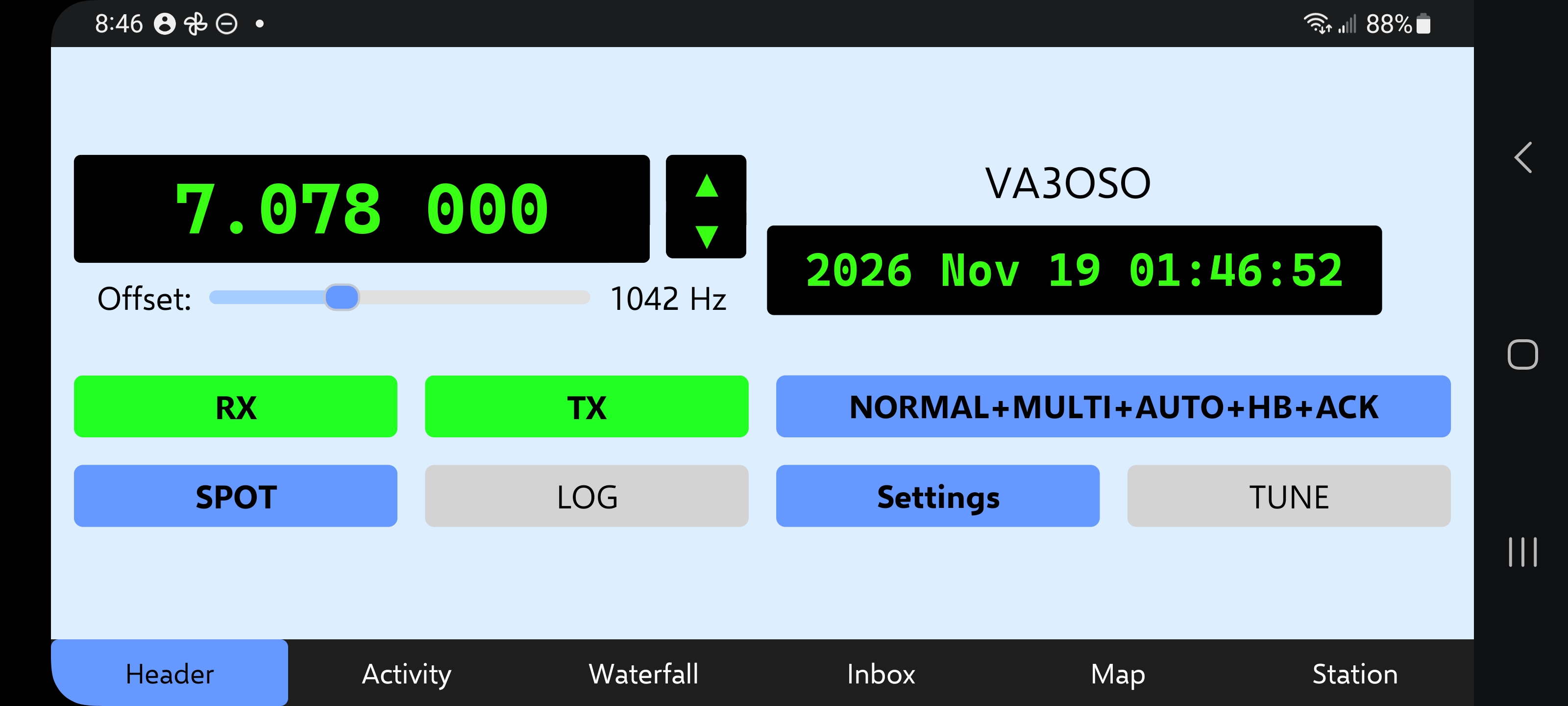
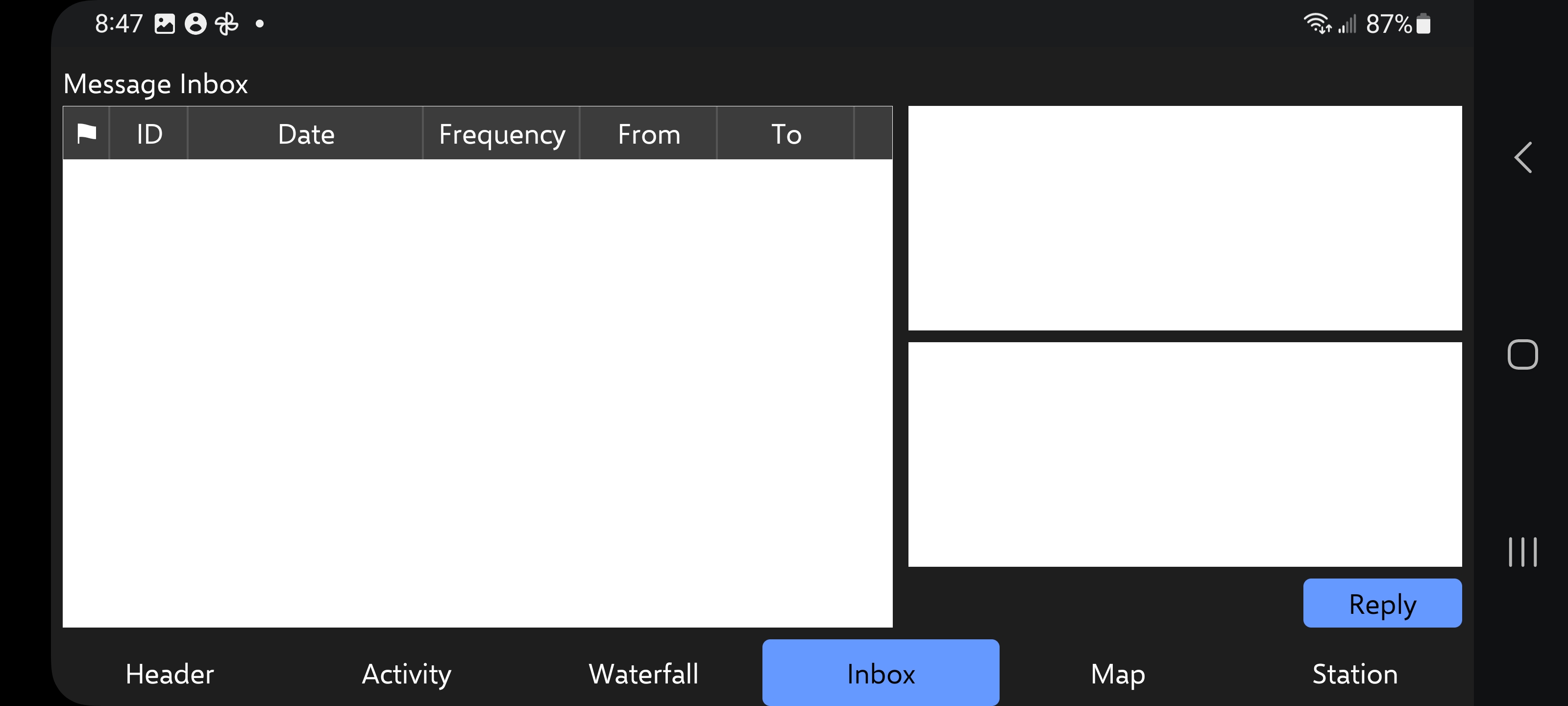
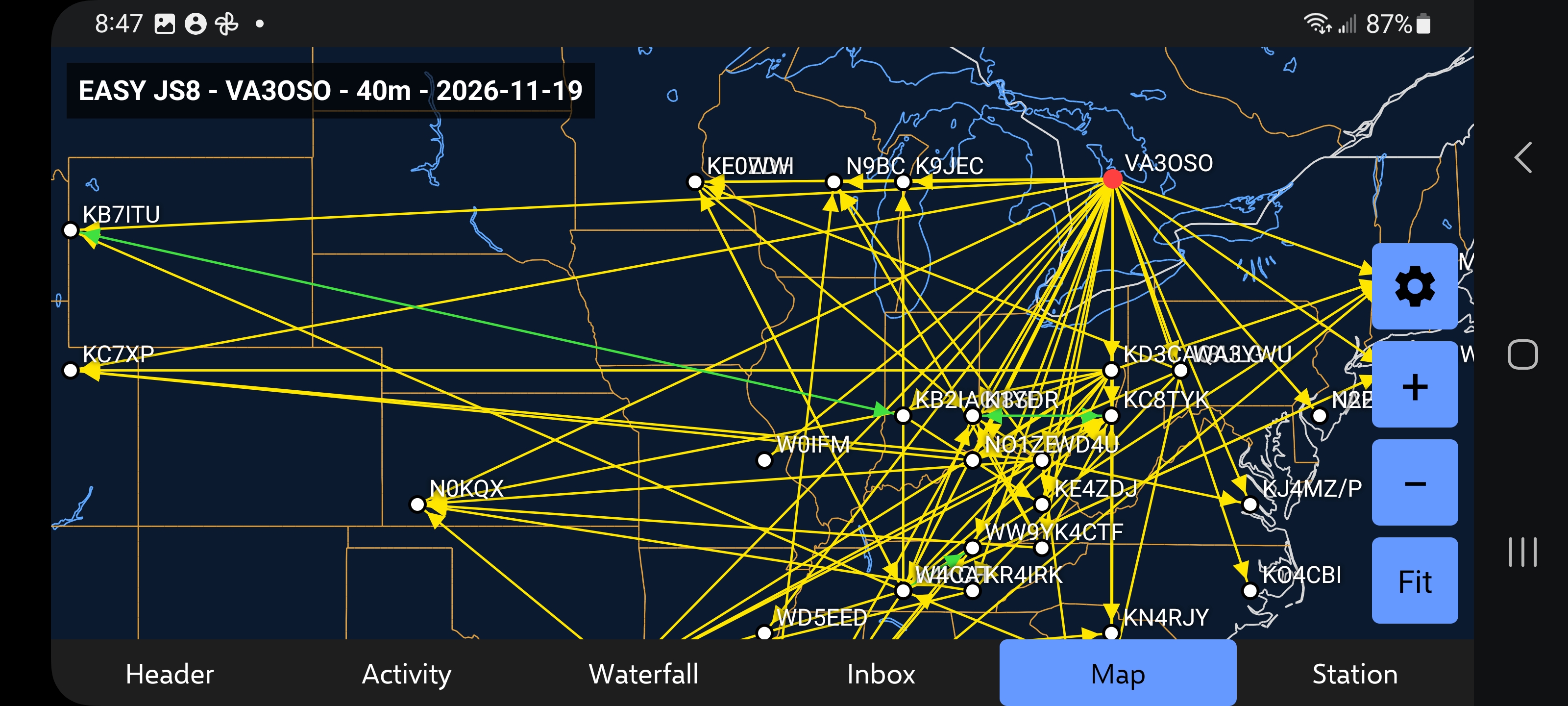
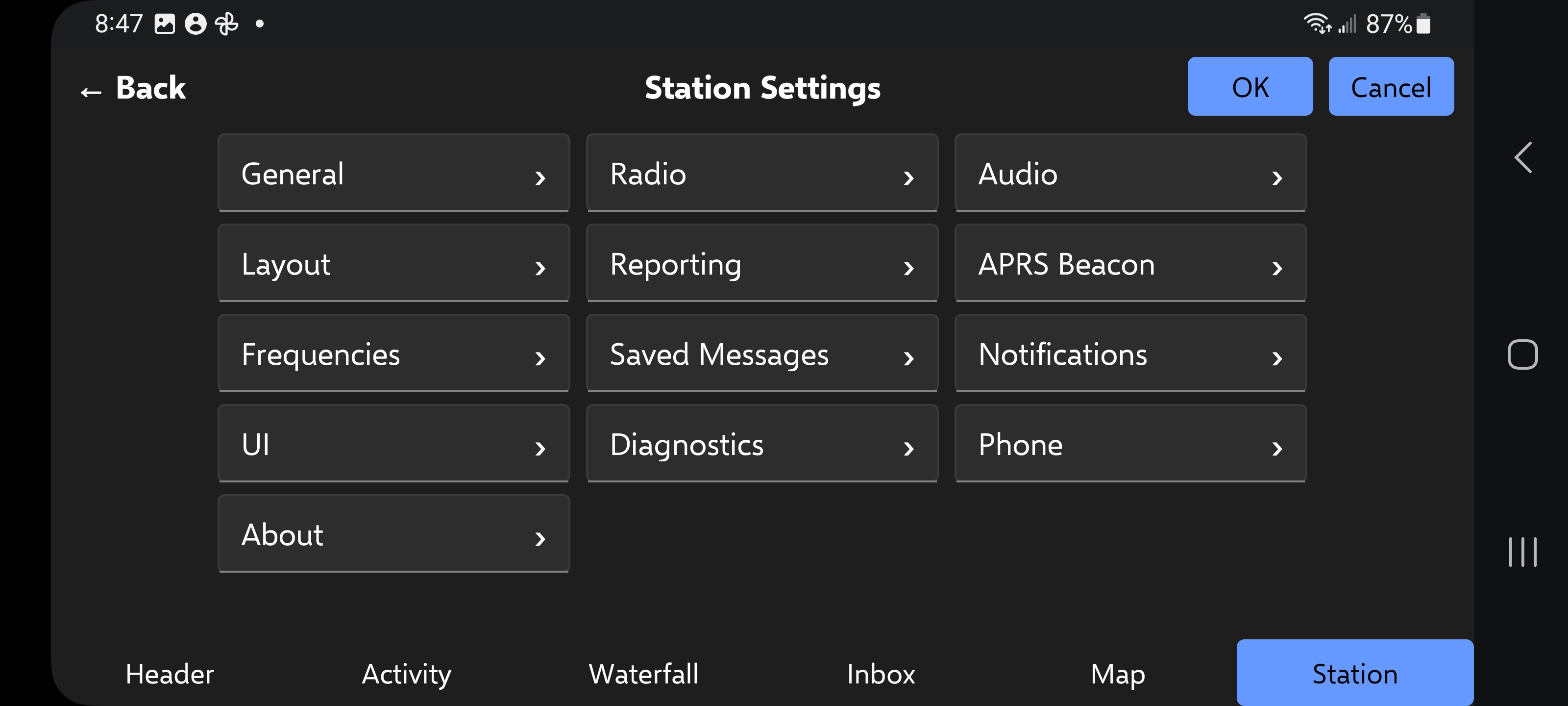
- Header: frequency and offset, your callsign and clock, and the header buttons.
- Activity: Band Activity, the Message Window over the Typing Box, Call Activity, the buttons in one row and the Status Bar.
- Waterfall: CAT and the level meter, the waterfall, Waterfall Controls and the power slider.
- Inbox: the message list, the selected message, the reply box and Reply.
- Map: the station map, as on the upright page.
- Station: the Station window.
Choosing the layout
- Settings > ⚙ > Station Settings > Layout > Sideways layout: PC or Pages. The Layout page is listed only while the device is sideways.